
Keeping plants healthy isn’t just about giving them water — it’s about giving them the right amount at the right...
Latest posts
-
 How to Measure Soil Moisture and Use It in Automatic Plant Watering Systemsread more
 -
 USB Driver installation instructions for NXTCam-v5read more
USB Driver installation instructions for NXTCam-v5
-
 How to attach rechargeable battery to PiStormsread more
How to attach rechargeable battery to PiStorms
-
 Connect to Wi-Fi Directly from PiStorms!read more
Connect your Raspberry Pi to a Wi-Fi network directly from PiStorms!
-
 Image Recognition Robot with PiStorms and Pi Cameraread more
Image Recognition Robot with PiStorms and Pi Camera
-

-
 Rotary Inverted Pendulum with PF-XL Motor and GlideWheel-Mread more
Rotary Inverted Pendulum with PF-XL Motor and GlideWheel-M
-

-
 Make Your Own Obstacle Avoidance Robot with SumoEyesread more
Make Your Own Obstacle Avoidance Robot with SumoEyes
-

Blog categories
Search in blog

Flame Detection
The NXTCam (Vision Subsystem - Camera for NXT or EV3) can be used to detect and track colored objects. By adding a small filter over the lens the NXTCam can also reliably detect and track flames!
This post assumes that users already have NXTCam USB drivers installed. NXTCam USB driver installation instructions
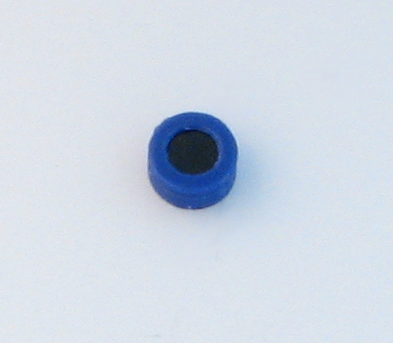
Infrared Band Pass Filter
The infrared light filter used in this project blocks out ambient light and is very easy to apply to the NXTCam. Simply slip the filter over the lens and you are done. The filter will only allow the NXTCam to see infrared light. This filter is available for purchase here: /vision-for-robots/169-flame-detector-filter-for-nxtcam-or-pixy
Theory of operation
This filter only permits infrared light around 760 nano-meters, and blocks visible light. It would permit IR light found in flame, or direct sunlight or IR ball.
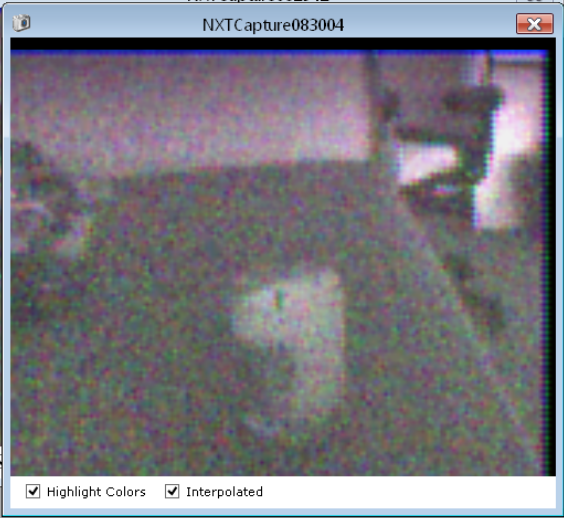
When seen through this filter, most things will appear black or gray. (below is an unlit candle)
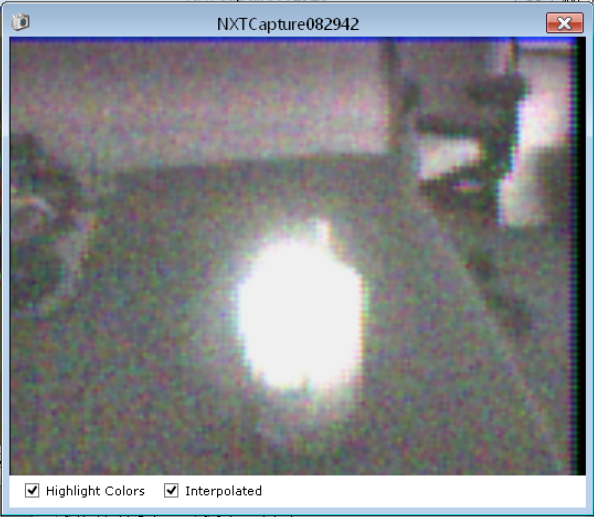
Whereas infrared light sources appear as white. (below is a lit candle)
Teaching the NXTCam
Use the NXTCamView tool to 'teach the flame' to the NXTCam. Download NXTCamView for Windows or Mac.
Connect the NXTCam to your computer via USB.
Click the 'Connect' option at the top of the window. You may have to select the COM port of your NXT for proper connection (you can find this information in the device manager on your computer).
Click the 'Capture' option at the top of the window. The NXTCam will take a picture. The flame will appear as a large white blob.
Click the 'Colors' option at the top of the window. The Colors window will appear.
In the picture, click the white blob created by the flame and click 'Upload' on the Colors window.
The NXTCam is now programmed to recognize flames!
Software
The NXTCam-trackBall-r01p02.ev3 example program will detect up to 8 flames and show these flames as boxes on the EV3 screen. If the flame is directly in front of the NXTCam the box will be drawn in the middle of the EV3 screen.
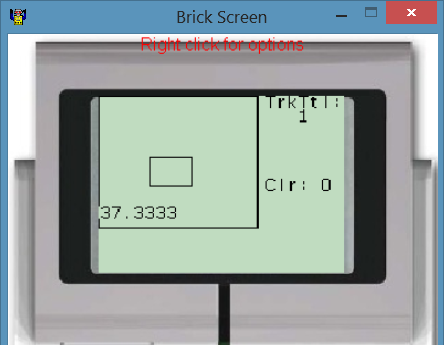
If the flame is to the left of the NXTCam the box will be drawn on the left of the EV3 screen.
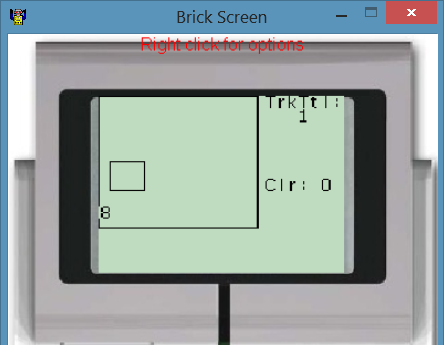
If the flame is to the right of the NXTCam the box will be drawn on the right of the EV3 screen.
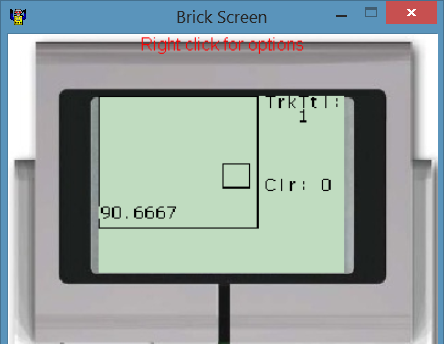
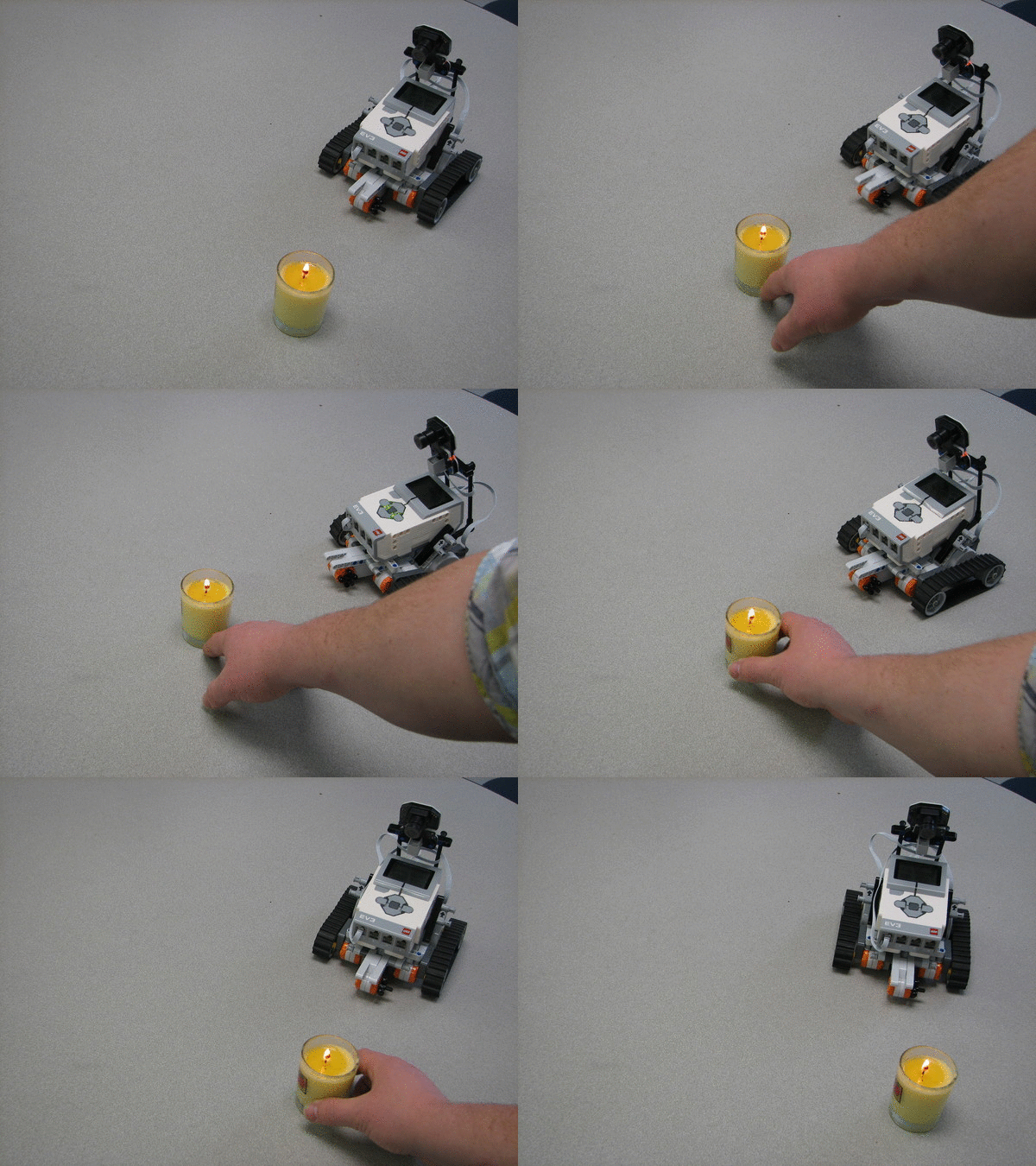
The program will also move motors to track the flame.
Related posts
-
 Line Following Robot with LightSensorArray or LineLeader
read more
Line Following Robot with LightSensorArray or LineLeader
Line Following Robot with LightSensorArray or LineLeaderread more -
 Attach Mulitple Sensors to a Single EV3 Port
EV3 Sensor Adapter with SPLIT-Nxread more
Attach Mulitple Sensors to a Single EV3 Port
EV3 Sensor Adapter with SPLIT-Nxread more -
 Line Tracking Experiments with NXTCam
read more
Line Tracking Experiments with NXTCam
Line Tracking Experiments with NXTCamread more -
 Vision for your PiStorms Robot using Pi Camera!
read more
Vision for your PiStorms Robot using Pi Camera!
Vision for your PiStorms Robot using Pi Camera!read more -
 How to install OpenCV on Raspberry Pi and do Face Tracking
read more
How to install OpenCV on Raspberry Pi and do Face Tracking
How to install OpenCV on Raspberry Pi and do Face Trackingread more
Leave a comment